
You can read the dev.to version of this article here.
I ran into trouble because I didn’t properly understand the difference in time formats between the Linux shutdown command and the systemctl poweroff family (same applies to systemctl halt and systemctl reboot).
As a reminder to myself, here’s a concise summary of each time format and how they differ.
TL;DR #
shutdown -P 06:00
-> (On Ubuntu,) this means the next 6:00. If it’s before 6:00 now, that’s today at 6:00; if it’s already past 6:00, it’s tomorrow at 6:00.systemctl poweroff --when=06:00
-> Today at 6:00; if it’s already past that time, it executes immediately.
More examples are in the latter half.
Test environment #
- Ubuntu Server 24.04 (systemd 255)
My mistake #
When managing servers, you’ll sometimes want to schedule a shutdown for planned power outages, etc.
The other day, when I tried to run the shutdown command on Ubuntu 24.04, I saw this warning:
$ shutdown --help
... omitted ...

This is a compatibility interface, please use the more powerful 'systemctl reboot',
'systemctl poweroff', 'systemctl reboot' commands instead.

# 'systemctl reboot' appears twice... 🤔
# It's fixed in the latest systemd source.
Ah, so even shutdown is unified by systemd.
So I checked systemctl’s man page.
poweroff
    ... omitted ...
    This command honors --force and --when= in a similar way as halt.
So I can use the --when option for scheduling.
Looking at the --when option description:
--when=
    When used with halt, poweroff, reboot, or kexec, schedule the action
    to be performed at the given timestamp, which should adhere to the
    syntax documented in systemd.time(7) section "PARSING TIMESTAMPS".
I didn’t feel like reading all of that, so I quickly asked Copilot.
(The original chat is in Japanese)
Me: Tell me how to write –when option of systemctl poweroff
Copilot: The –when option in the systemctl poweroff command is used to specify when to power off the system.
Basic syntax sudo systemctl poweroff –when=
Common options
- now: Power off immediately
- reboot: Power off on the next reboot
- shutdown: Power off on the next system shutdown
- Specific time (e.g. 12:30): Power off at the specified time
Examples sudo systemctl poweroff –when=now → Power off immediately sudo systemctl poweroff –when=20:00 → Power off at 20:00 today
I thought, okay, same as the shutdown command (THIS WAS THE MISTAKE. Btw, what is reboot or shutdown at a specified time?).
Indeed, the actual shutdown command is a symbolic link to systemctl.
So I assumed that – just like shutdown – if I specify the time as 06:00, it would schedule it for 06:00 the next day, and I ran:
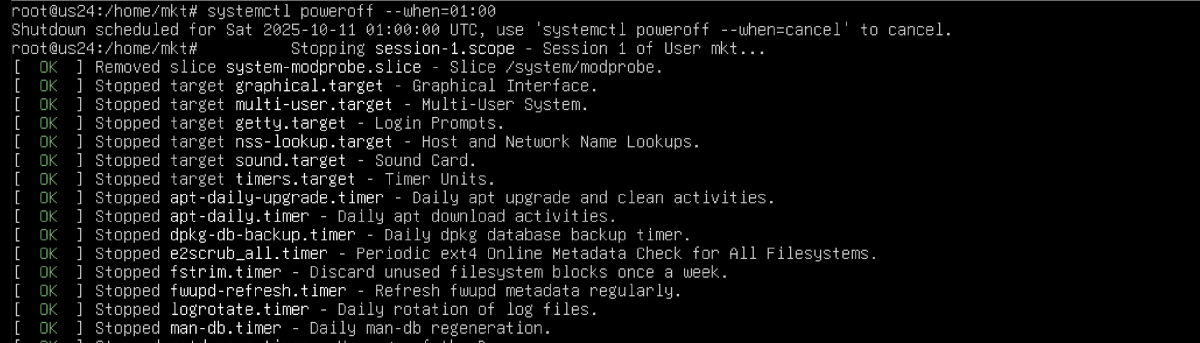
$ systemctl poweroff --when="06:00"Hit Enter, then…
It powered off immediately. 😇
It was just a personal desktop I use casually, so no real harm was done.
What went wrong? #
Let’s read the systemd.time man page section “PARSING TIMESTAMPS.”
... omitted ...

Examples for valid timestamps and their normalized form (assuming the current time was 2012-11-23 18:15:22 and the timezone was UTC+8, for example "TZ=:Asia/Shanghai"):

      Fri 2012-11-23 11:12:13 -> Fri 2012-11-23 11:12:13
      2012-11-23 11:12:13 -> Fri 2012-11-23 11:12:13
      2012-11-23 11:12:13 UTC -> Fri 2012-11-23 19:12:13
      2012-11-23T11:12:13Z -> Fri 2012-11-23 19:12:13
      2012-11-23T11:12+02:00 -> Fri 2012-11-23 17:12:00
      2012-11-23 -> Fri 2012-11-23 00:00:00
      12-11-23 -> Fri 2012-11-23 00:00:00
      11:12:13 -> Fri 2012-11-23 11:12:13
      11:12 -> Fri 2012-11-23 11:12:00    <- here
If you specify only a time, the date is filled in as “today.” If that time has already passed, the action happens immediately.
A bit unfriendly.
How shutdown and systemctl poweroff handle times #
shutdown #
shutdown [OPTIONS...] [TIME] [WALL...]TIME can be:
now: immediately+n: n minutes from nowhh:mm: the next occurrence of hh:mm (24-hour format). For example, 06:30 means the next 06:30 (this works on Ubuntu; other distros may differ).
Also note that the shutdown command can’t specify a date.
Examples:
# If you specify nothing, it's 1 minute later
$ shutdown -P

# Immediate
$ shutdown -P now

# The next 06:30 (uses the server's time zone)
$ shutdown -P 06:30
systemctl poweroff #
Use the --when option to specify the time.
The time format can include not only time (hh:mm) but also a full datetime and timezone.
If you specify only a time, the date is completed as “today.” If that time has already passed, it executes immediately.
Examples:
# If you specify nothing, it's immediate (differs from shutdown)
$ systemctl poweroff

# Run at 06:30 today; if already past, run immediately
$ systemctl poweroff --when="06:30"

# Run at 06:30 on 2025-10-05
$ systemctl poweroff --when="2025-10-05T06:30:00"
To be safe, avoid time-only strings; specify a full date and time.
Takeaway #
Read the official documentation properly.
Notes #
- Ubuntu 22.04 doesn’t have the
--whenoption yet. - You can check how timestamps are parsed with
systemd-analyze timestamp "06:30". - On Ubuntu (and possibly elsewhere),
shutdownis a symlink tosystemctl, but their time formats are not compatible;shutdownis implemented as a compatibility command insidesystemctl.
Change history #
- 2026-09-21: Republished from dev.to.
- 2025-10-21: Translated from my original Japanese post.